
FIDELIO
Any element. Three times sharper. Your crop.
Free and open source (MIT) · Firefox and Chrome · Made by Neforus
Download
Install Fidelio from your browser's store. It installs in one click and updates itself.
Or install it by hand (version 1.2.1)
Chrome or Edge:
- Unzip the file.
- Open
chrome://extensions(oredge://extensions) and turn on Developer mode. - Click Load unpacked and choose the unzipped folder.
Firefox: open about:debugging, click This Firefox, then Load Temporary Add-on and choose the .xpi. Firefox removes it when it restarts, so use Firefox Add-ons for a permanent install.
What it does
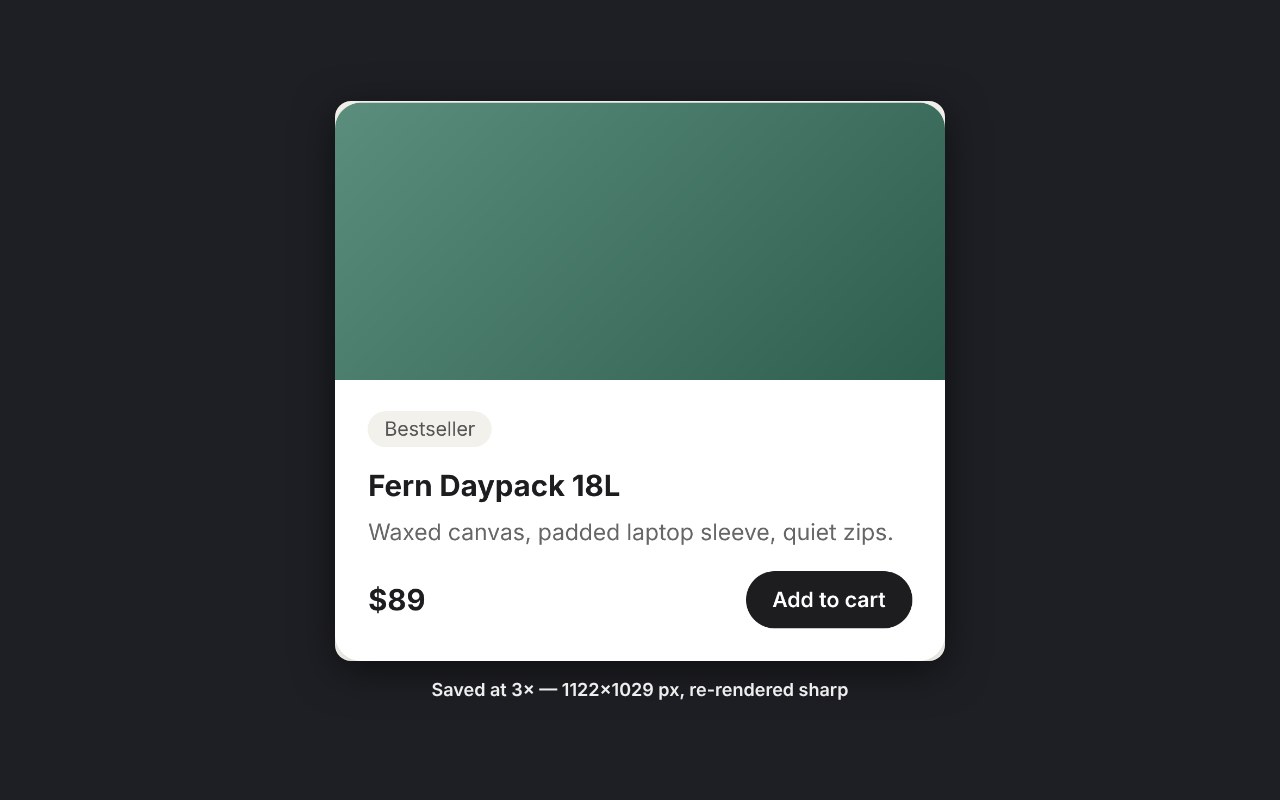
Normal screenshots are limited to your screen's resolution. Fidelio redraws the element you pick at 3× (adjustable from 1× to 8×), so text, icons and edges stay sharp when you zoom in, print, or use the image in designs and documents.
It captures the whole element, even the parts scrolled out of view, and saves a PNG to Downloads/Element Screenshots.
How to use it
- 1. StartClick the toolbar button, press Ctrl+Shift+. (⌘+Shift+. on Mac), or right-click the page.
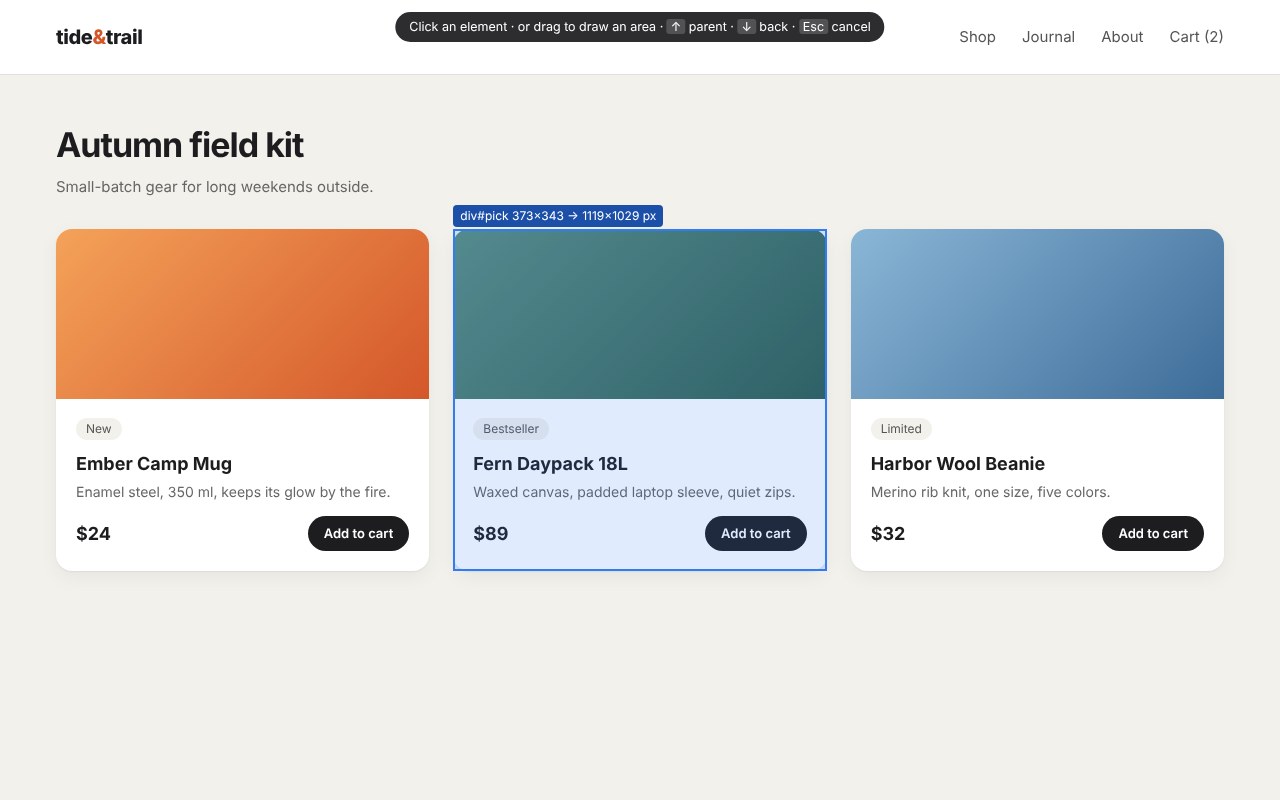
- 2. PickHover to highlight an element and click it. ↑ selects the parent, ↓ goes back. Or drag to draw any area.
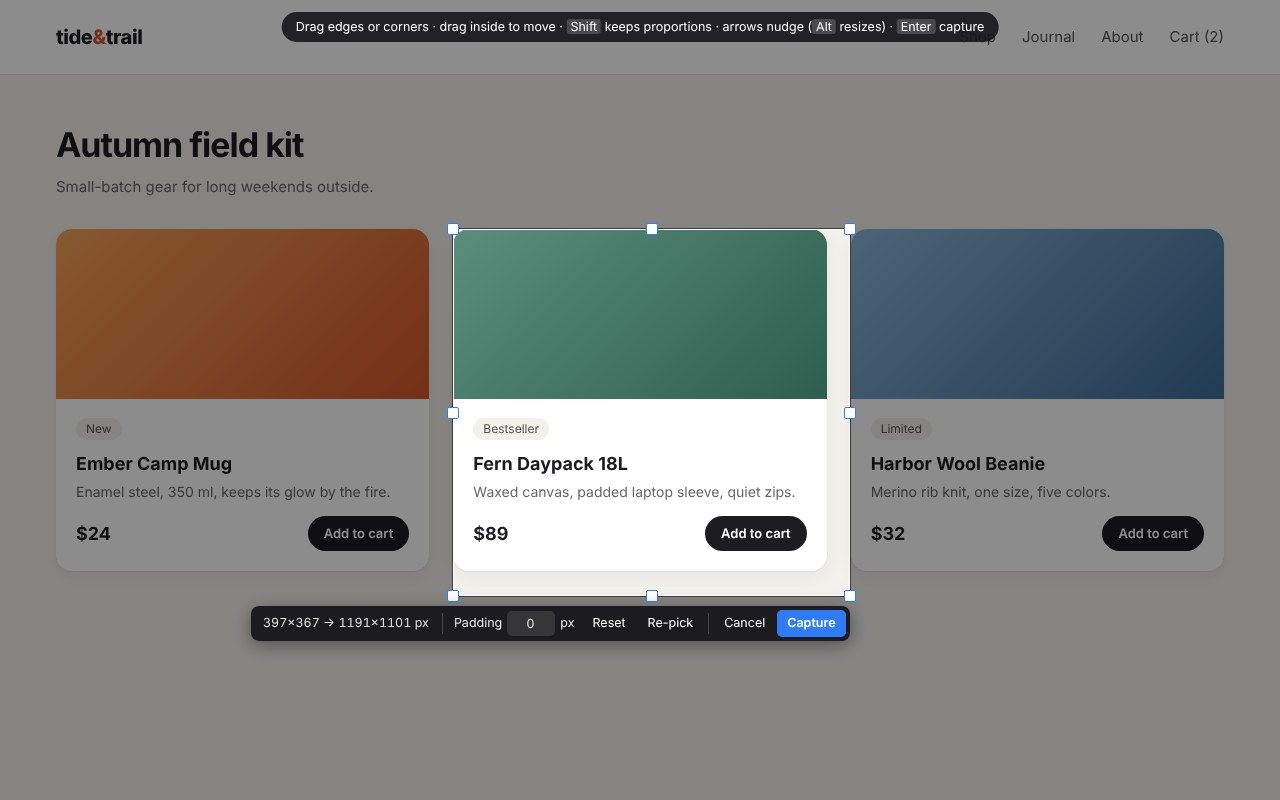
- 3. Adjust the cropDrag the edges or corners, move the box, add padding, or nudge with the arrow keys. Hold Shift to keep the proportions.
- 4. CapturePress Enter. The full-resolution PNG is saved right away.
Screenshots
Settings
In the extension's options you can set the multiplier, choose whether it multiplies your screen's normal quality or the page's own size, ask where to save each image, copy it to the clipboard, or skip the crop step and capture instantly.
Private by design
Fidelio collects no data and makes no network requests. Screenshots are saved only to your computer, and settings stay in your browser.
Contact
Questions and suggestions: neforus.business@gmail.com